WiFi Channel Interference: Why It Slows Your WiFi (and How to Fix It)
In an apartment building, your neighbours' routers are directly fighting yours for airtime. This is the single most overlooked cause of slow WiFi — and it's completely fixable in 5 minutes.
1. How WiFi channels work
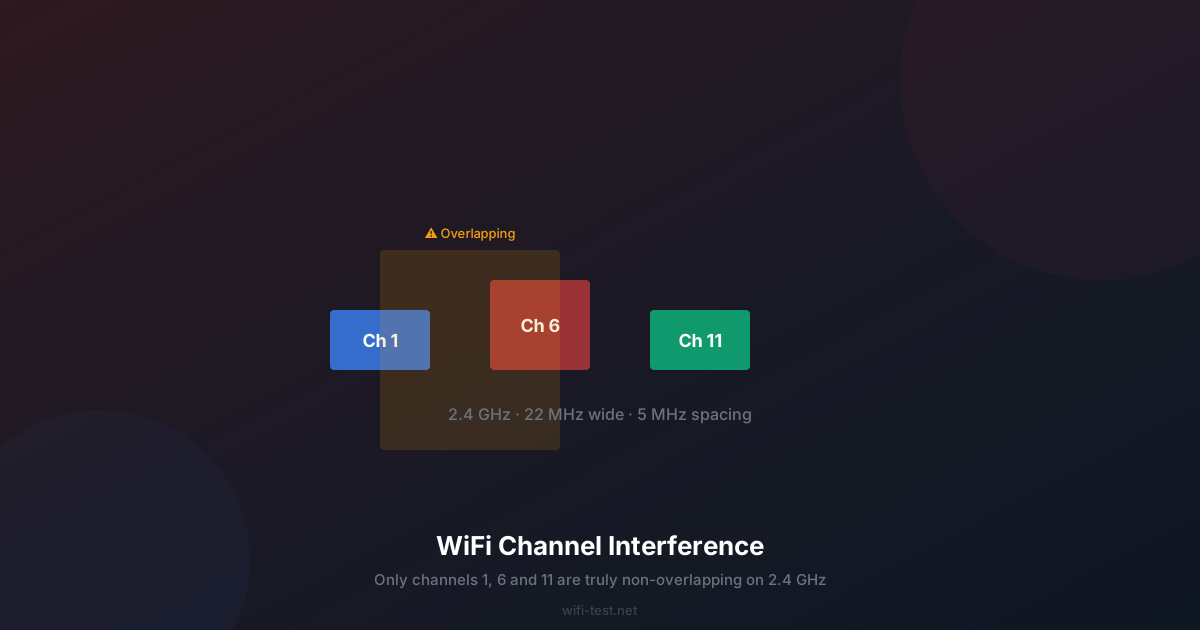
WiFi doesn't use a single frequency — it uses a slice of radio spectrum divided into numbered channels. On the 2.4 GHz band, there are 14 channels (though region-locked; North America uses channels 1–11). Each channel is 22 MHz wide, but they're spaced only 5 MHz apart. This means adjacent channels overlap and cause co-channel interference.
Only channels 1, 6, and 11 on the 2.4 GHz band are truly non-overlapping. Every router using channel 3, 4, or 7 is overlapping with both the adjacent channels and the popular non-overlapping ones, compounding interference in all directions.
The 5 GHz band has 25+ non-overlapping channels (depending on country), which is why it's far less congested — even in apartment buildings where everyone has a 5 GHz router.
2. Two types of interference
Co-channel interference (CCI)
Multiple networks operating on the exact same channel. They use 802.11 CSMA/CA protocol to take turns, which means they collectively share the available airtime. Ten routers on channel 6 each get roughly 1/10th of the available capacity.
Adjacent channel interference (ACI)
Networks on overlapping but different channels (e.g., channel 4 and channel 6). These don't take turns politely — they just produce radio interference, degrading each other's signals. ACI is often worse than CCI because neither network knows it should yield to the other.
3. How to diagnose your channel situation
Before changing anything, scan your environment:
- Android: WiFi Analyzer (by farproc) — free, shows all visible networks with signal strength and channel. Bars chart view shows you exactly how crowded each channel is.
- iPhone/iPad: Apple blocks most WiFi scanning. Use Airport Utility (enable WiFi Scanner in Settings) or a dedicated app like Network Analyzer.
- Windows: Run
netsh wlan show networks mode=bssidin Command Prompt — shows channels of all visible networks. - macOS: Hold Option and click the WiFi menu bar icon → "Open Wireless Diagnostics" → Scan window.
Count how many networks are on each channel in your area. If channels 1, 6, or 11 have 5+ networks on them, also check the 5 GHz band — it's almost certainly less crowded.
4. How to change your WiFi channel
- Open a browser and go to your router admin panel — usually 192.168.1.1 or 192.168.0.1.
- Log in (default credentials are often on a sticker on the router bottom).
- Find Wireless Settings or WiFi Channel (varies by router brand).
- Change from "Auto" to a specific channel number.
- For 2.4 GHz: choose the least-occupied of channels 1, 6, or 11.
- For 5 GHz: choose any channel not occupied by your neighbours (channels 36, 40, 44, 48 are always a safe start).
- Save and reconnect your devices.
After changing the channel, run a speed test to measure the improvement. In crowded environments, switching from channel 6 to a clear channel 11 can double effective throughput.
5. Channel width and its trade-offs
Modern routers support wider channel widths for higher throughput:
- 2.4 GHz: 20 MHz or 40 MHz. 40 MHz doubles throughput but halves the number of available non-overlapping channels (from 3 to 1 in most countries). Don't use 40 MHz on 2.4 GHz in dense areas — it dramatically worsens interference.
- 5 GHz: 20, 40, 80, or 160 MHz. 80 MHz is the sweet spot for most users. 160 MHz offers peak speed but on very few non-overlapping channels — avoid it in apartment buildings.
- 6 GHz (WiFi 6E/7): 20–320 MHz. The 6 GHz band has 1200 MHz of spectrum — multiple times more than 2.4 GHz and 5 GHz combined. Interference is minimal in 2026 because relatively few devices use it yet.
6. Non-WiFi sources of 2.4 GHz interference
Your neighbours aren't the only source of 2.4 GHz interference:
- Microwave ovens: Operate at 2.45 GHz — directly in the WiFi spectrum. A running microwave can drop your WiFi speed by 50% or more. Mitigation: switch to 5 GHz, or upgrade to a better-shielded microwave.
- Baby monitors and DECT phones: Some models operate on 2.4 GHz. Replace with DECT 6.0 (1.9 GHz) or 5.8 GHz models.
- Bluetooth: Uses frequency hopping across 2.4 GHz. Modern Bluetooth coexists reasonably well with WiFi, but Bluetooth audio streaming can occasionally cause interference spikes.
- Older ZigBee/Z-Wave IoT devices: Some home automation devices operate on 2.4 GHz sub-bands. Check your smart home hub for interference settings.
7. The nuclear option: switch entirely to 5 GHz or 6 GHz
If your 2.4 GHz environment is hopelessly congested (15+ networks on every channel), the best long-term solution is to force all your devices onto 5 GHz or 6 GHz. Modern routers support "band steering" which automatically connects capable devices to the less-congested band. Enable it in your router settings. See our router optimization guide for detailed band-steering setup instructions.
Conclusion
WiFi channel interference is invisible but measurable. A quick channel scan takes 2 minutes. Switching to the least-congested channel takes another 2 minutes in your router admin panel. The result — often 50–100% faster effective WiFi in crowded environments — costs nothing.
▶ Test your WiFi speed before and after changing channels