
Router Not Reaching Advertised Speed? Here's Why (and How to Fix It)
An AC3000 router will never give one device 3 Gbps. The number is marketing math, not your real speed. Here's how router ratings actually work and what you can realistically get.
1. What router speed ratings actually mean
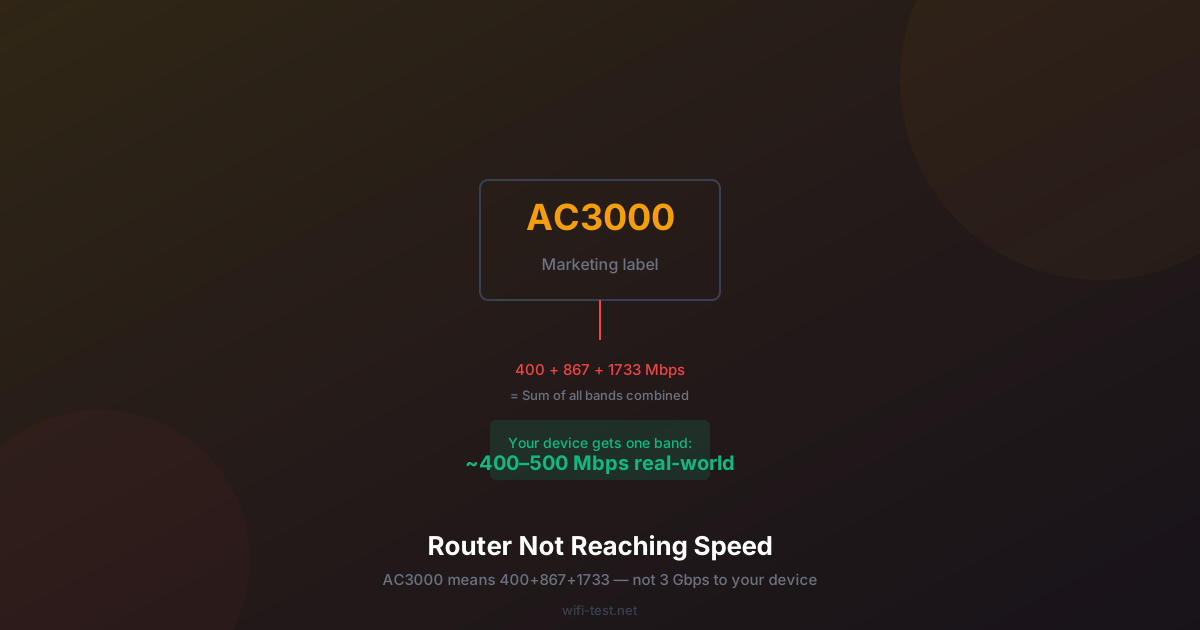
An AC3000 router does not mean 3 Gbps to your device. The number is the sum of the theoretical maximum speeds of all the router's radio bands combined:
- AC3000 = 400 Mbps (2.4 GHz band) + 867 Mbps (5 GHz band 1) + 1,733 Mbps (5 GHz band 2)
- AX6000 = 1,148 Mbps (2.4 GHz) + 4,804 Mbps (5 GHz)
- AXE7800 = 574 Mbps (2.4 GHz) + 2,402 Mbps (5 GHz) + 4,804 Mbps (6 GHz)
Your single device connects to one of those bands. The theoretical maximum for that one band is a fraction of the headline number, and the real-world maximum is 50–70% of that theoretical figure due to protocol overhead, distance, and interference.
2. The gap between theory and reality
Router manufacturers test maximum throughput in an anechoic chamber, at close range, with no other devices, and with specialised testing equipment. Your home environment has walls, competing devices, interference, and devices that don't support the router's highest WiFi standard.
Typical real-world discounts from theoretical maximum:
- WiFi protocol overhead: −10–15%
- Distance (10m, 2 walls): −40–60%
- Channel congestion (apartment): −20–40%
- Client device limitations (older WiFi standard): −50–80%
A device with WiFi 5 (802.11ac) connecting to a WiFi 6 router will never use WiFi 6 features — it uses the router's WiFi 5 compatibility mode. The router is capable of more, but the device bottlenecks the connection.
3. Is your issue the router, ISP, or WiFi?
Before blaming your router, determine where the bottleneck is:
- Connect via Ethernet cable directly to the router and run a speed test. This measures your actual ISP connection, bypassing WiFi entirely.
- If Ethernet speed matches your plan: the problem is WiFi, not your ISP or router performance.
- If Ethernet speed is slower than your plan: the problem is your ISP connection or modem. Call your ISP.
- If WiFi is significantly slower than Ethernet: follow the fixes below.
4. Why your WiFi is slower than your Ethernet
Your device uses an older WiFi standard
A laptop with a WiFi 5 (802.11ac) card connecting to a WiFi 6E router uses WiFi 5. Maximum throughput on a single WiFi 5 stream at 80 MHz width: approximately 867 Mbps theoretical, 400–500 Mbps real-world at close range. If your device has WiFi 4 (802.11n), maximum is around 150 Mbps. Check your device's WiFi spec: Windows → Device Manager → Network Adapters → WiFi adapter properties.
Channel width is set too narrow (or too wide)
Routers on 2.4 GHz should use 20 MHz channels in dense areas (40 MHz causes severe interference). On 5 GHz, 80 MHz is the best balance of speed and channel availability. On 6 GHz, 160 MHz is excellent since the band is uncrowded. Check your router admin panel's "Channel Width" setting.
Router is in a poor location
WiFi signal is omnidirectional — a router on the floor in a corner wastes most of its signal. Elevate the router, move it away from walls and metal objects, and position it centrally. See our router placement guide for the exact optimal positions.
Router firmware is outdated
Router firmware updates often include performance improvements, bug fixes, and security patches. Log into your router admin panel (usually 192.168.1.1 or 192.168.0.1) and check for firmware updates. Many routers have an auto-update option — enable it.
Too many devices sharing the connection
A WiFi 6 router with 20 connected devices is sharing the available airtime between all of them. If 5 devices are simultaneously streaming 4K video, downloading, or backing up to the cloud, each gets a fraction of total capacity. QoS (Quality of Service) settings can prioritise certain devices or traffic types.
5. What you can realistically expect
Realistic WiFi throughput benchmarks for a modern home environment (20m, 2 walls, apartment):
- WiFi 4 (802.11n), 2.4 GHz: 30–80 Mbps
- WiFi 5 (802.11ac), 5 GHz: 150–300 Mbps
- WiFi 6 (802.11ax), 5 GHz: 200–500 Mbps
- WiFi 6E (802.11ax), 6 GHz, close range: 800–2,000 Mbps
- WiFi 6E (802.11ax), 6 GHz, 20m/2 walls: 200–500 Mbps
If your speed test shows figures within these ranges for your hardware and distance, your setup is performing normally — the issue may be with your ISP plan, not your router.
6. The checklist: what to do if your speed is below expected
- Run a speed test via Ethernet to determine actual ISP speed.
- Update router firmware.
- Restart the router (clears ARP cache, renegotiates channels).
- Check the device's WiFi standard — is it capable of matching the router?
- Move the router to a central, elevated position.
- Set 5 GHz to 80 MHz channel width.
- Change the WiFi channel to the least congested (1, 6, or 11 on 2.4 GHz).
- Connect the device via Ethernet if it doesn't need to be wireless.
Conclusion
Router speed ratings are the sum of all bands simultaneously — not what any single device receives. Real-world speeds are typically 30–60% of the number on the box, at close range. The biggest gains come from: matching your device's WiFi standard to the router, optimising router position, and using Ethernet where possible. Run a speed test to establish your current baseline before changing anything.
▶ Test your actual WiFi speed right now